Features
One window for the things a working day is made of: files here and on servers, a web page, a shell, and the editors to change what you find.
Two panels, six kinds
The window holds one or two panels, and each panel is one of six kinds. It opens the way Far does, with two file lists.
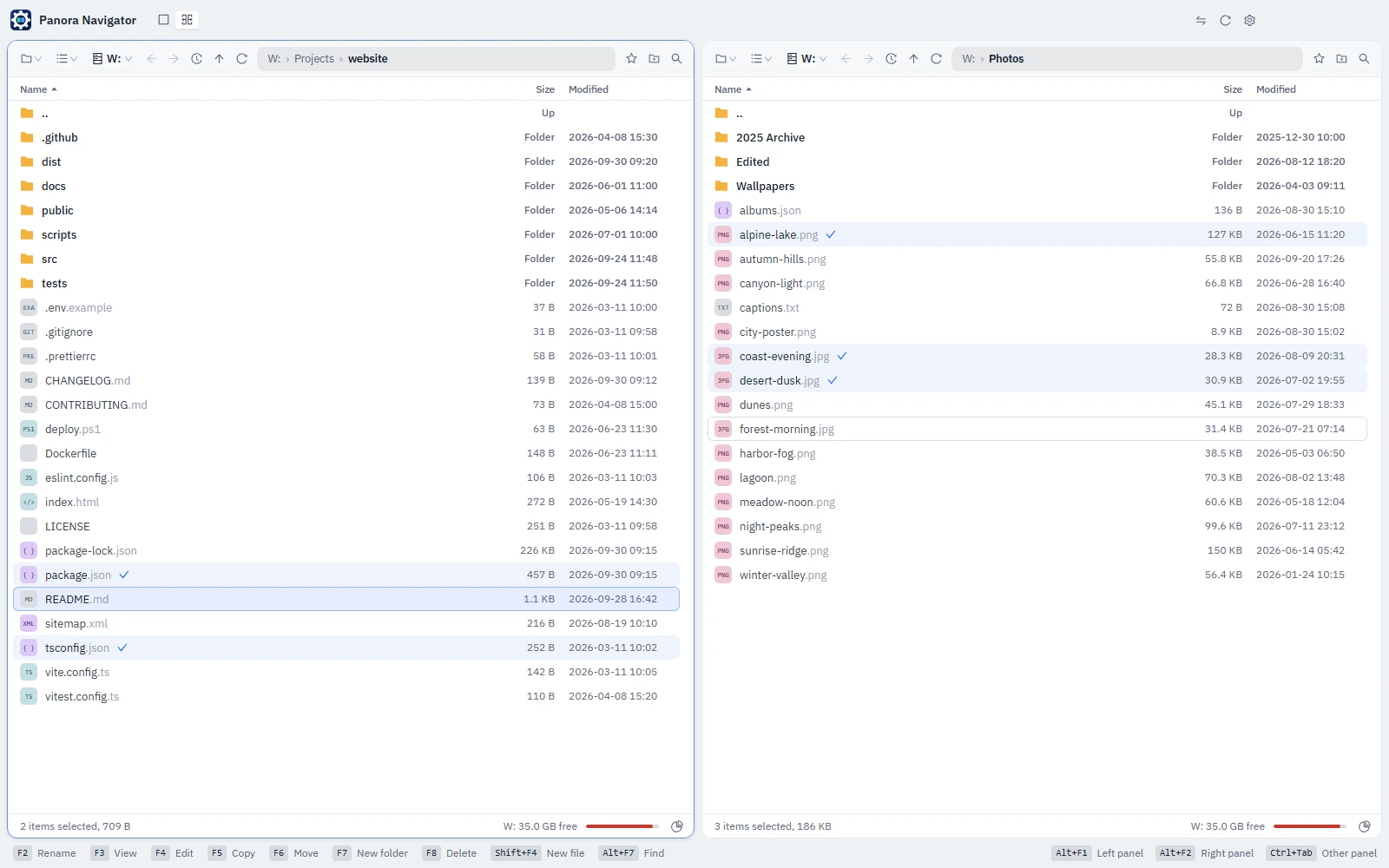
- One panel or two
- Ctrl+1 shows one panel, Ctrl+2 two. Ctrl+U swaps them, and Tab or Ctrl+Tab moves to the other one.
- Pick what each panel shows
- Files, FTP, Secure storage, Browser, Terminal or Preview, chosen from the top toolbar or with Alt+F1 for the left panel and Alt+F2 for the right.
- Panels remember
- A panel keeps its place in each kind. Switch from Files to Browser and back, and you are in the same folder and the same view.
- Only what you use
- Panel kinds you never need can be turned off in the Settings, so the menus stay short.
Files, as a list or as a tree
The same folder two ways: a list as in Far Manager, or a tree whose folders open in place as in Windows Explorer.
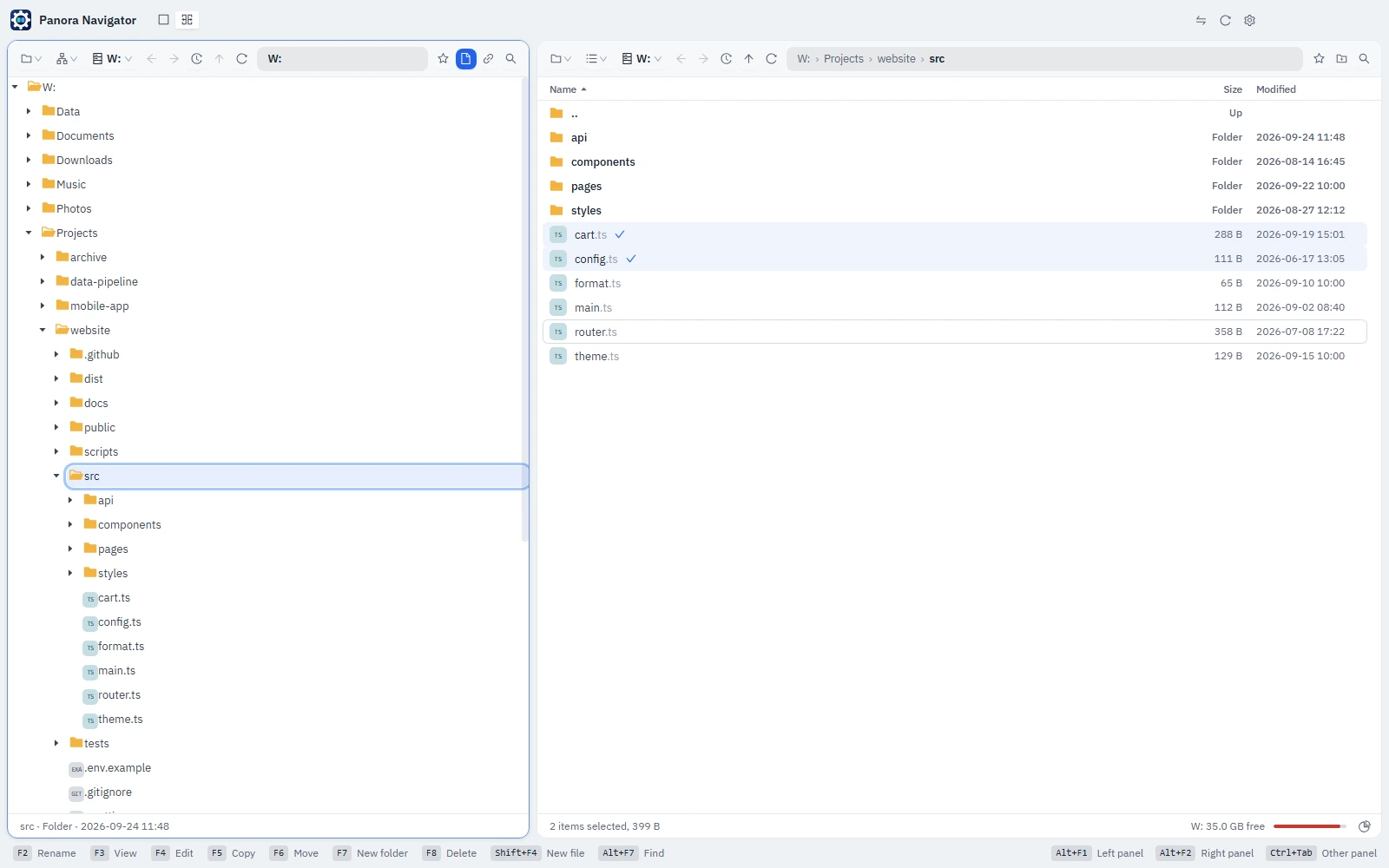
- List with a cursor and marks
- Move with the arrows, mark with Insert or Space, mark everything with Ctrl+A, and start typing to jump to a name.
- Tree that can drive the other panel
- Open folders in place. With the link button on, a folder picked in the tree opens in the other panel too.
- Tabs
- Ctrl+T opens the folder in another tab, Ctrl+W closes one. Each tab has its own way back, and tabs are remembered between sessions.
- History and path
- Alt+Left and Alt+Right go back and forward; Alt+F12 lists the folders visited lately. Click any part of the path to go there, or click beside it to type one.
- Favorites
- Star a folder to keep it. Favorites sit in folders as deep as you like and are edited by dragging.
- Space manager
- See what takes the room on a drive: folders are listed largest first, or only what was added in the last days.
Copy, move, rename, delete
The function keys act on the marked files, or on the one under the cursor. The other panel is where things go by default.
- F5 and F6
- Copy and move to a folder that is asked for, the other panel's by default. Nothing is overwritten without asking.
- F2, F7, F8, Shift+F4
- Rename, make a folder, delete to the recycle bin, and make a new file that opens in its editor at once.
- Drag and drop
- Drag from one panel to the other, or onto a folder in either. A drop copies; with Alt or Shift held it moves, and a label beside the cursor says which.
- Cut, copy, paste
- Ctrl+C, Ctrl+X and Ctrl+V work between panels. Pasting a copy into the folder it came from makes "name - Copy".
Preview
Put the Preview in one panel and it shows what the cursor of the other panel is on, a moment after it stops.
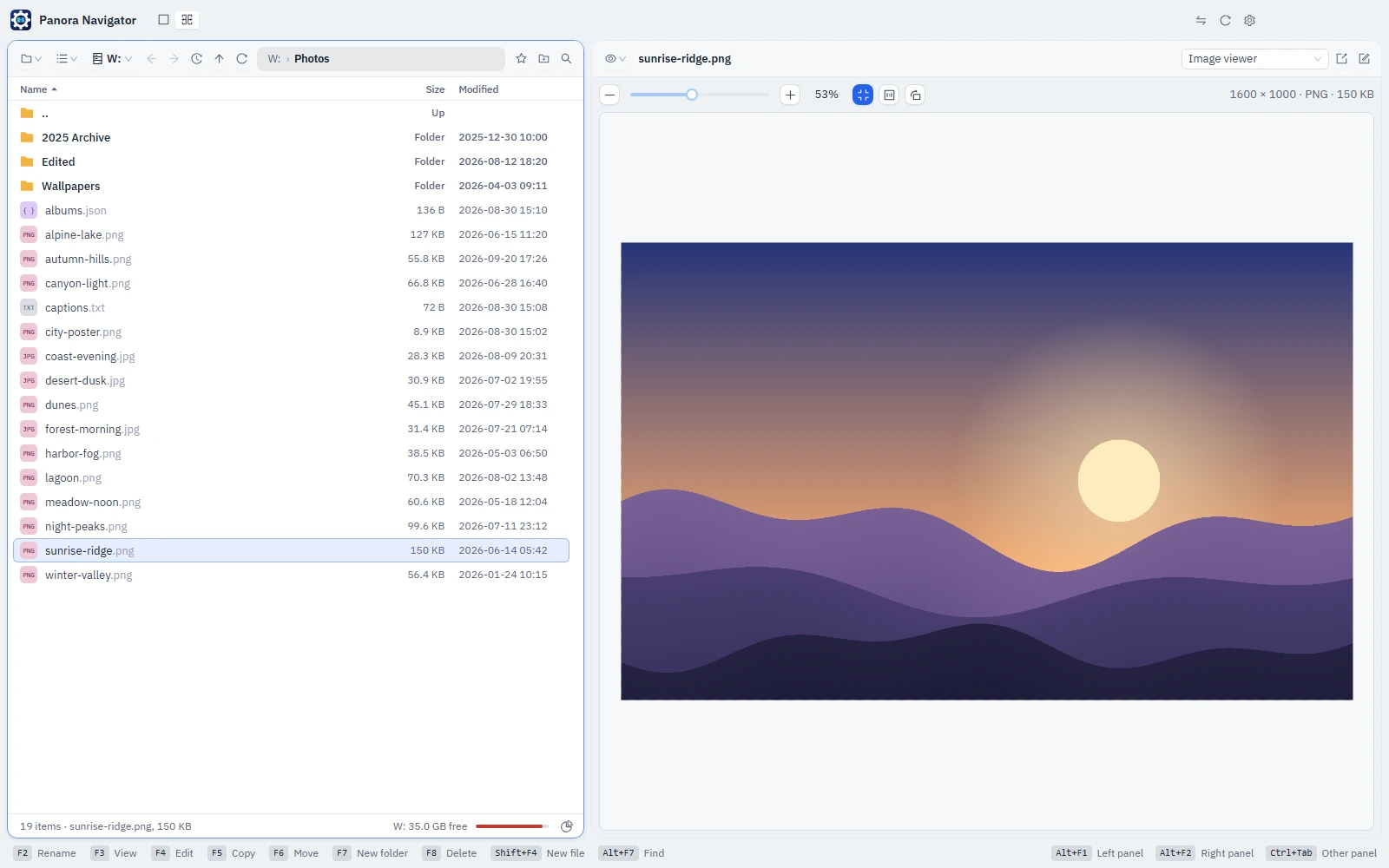
- Files
- PDFs, pictures and text are shown in their viewers; other files open in their editor or are described.
- Folders
- A folder is shown by what is in it, with icons you can size, as Explorer shows it.
- Archives
- ZIP, RAR and 7z archives list their files with sizes as they are and as they are packed, without unpacking anything.
Browser
A web page in a panel: the documentation beside the code, the ticket beside the files it is about.
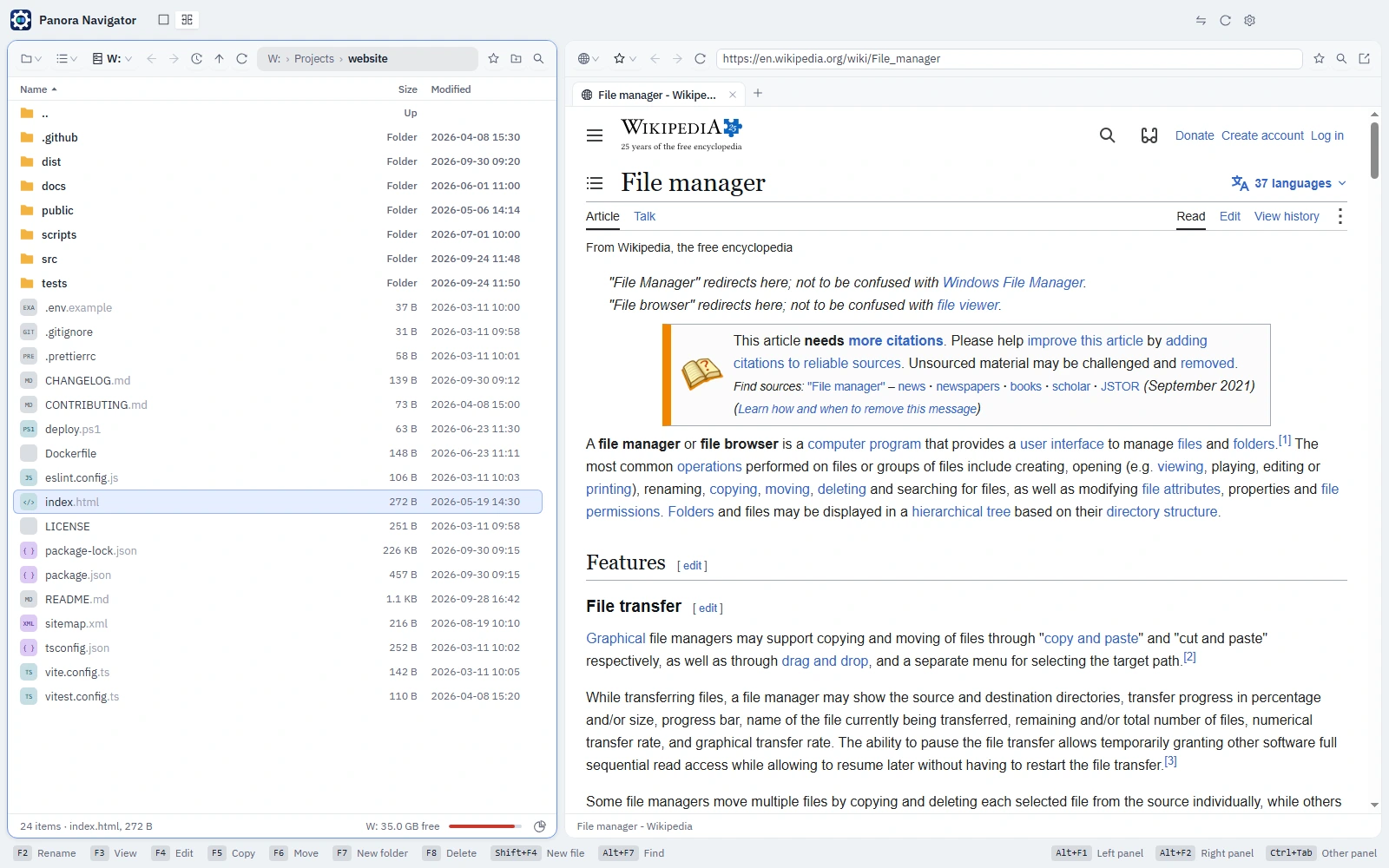
- Tabs as in Chrome
- Ctrl+T, Ctrl+W, Ctrl+PageUp and Ctrl+PageDown. Links that ask for a new window open in a new tab; Ctrl+click opens one behind.
- Sessions are kept
- Each panel's tabs are remembered, and a tab from the last session loads when it is first shown.
- Bookmarks you already have
- Import from Chrome, Edge, Brave, Vivaldi or Opera, or from a bookmarks file that any browser exports, keeping their folders.
Terminal
Shells in tabs, each with a real console behind it, so programs that draw on the whole screen work as they should.
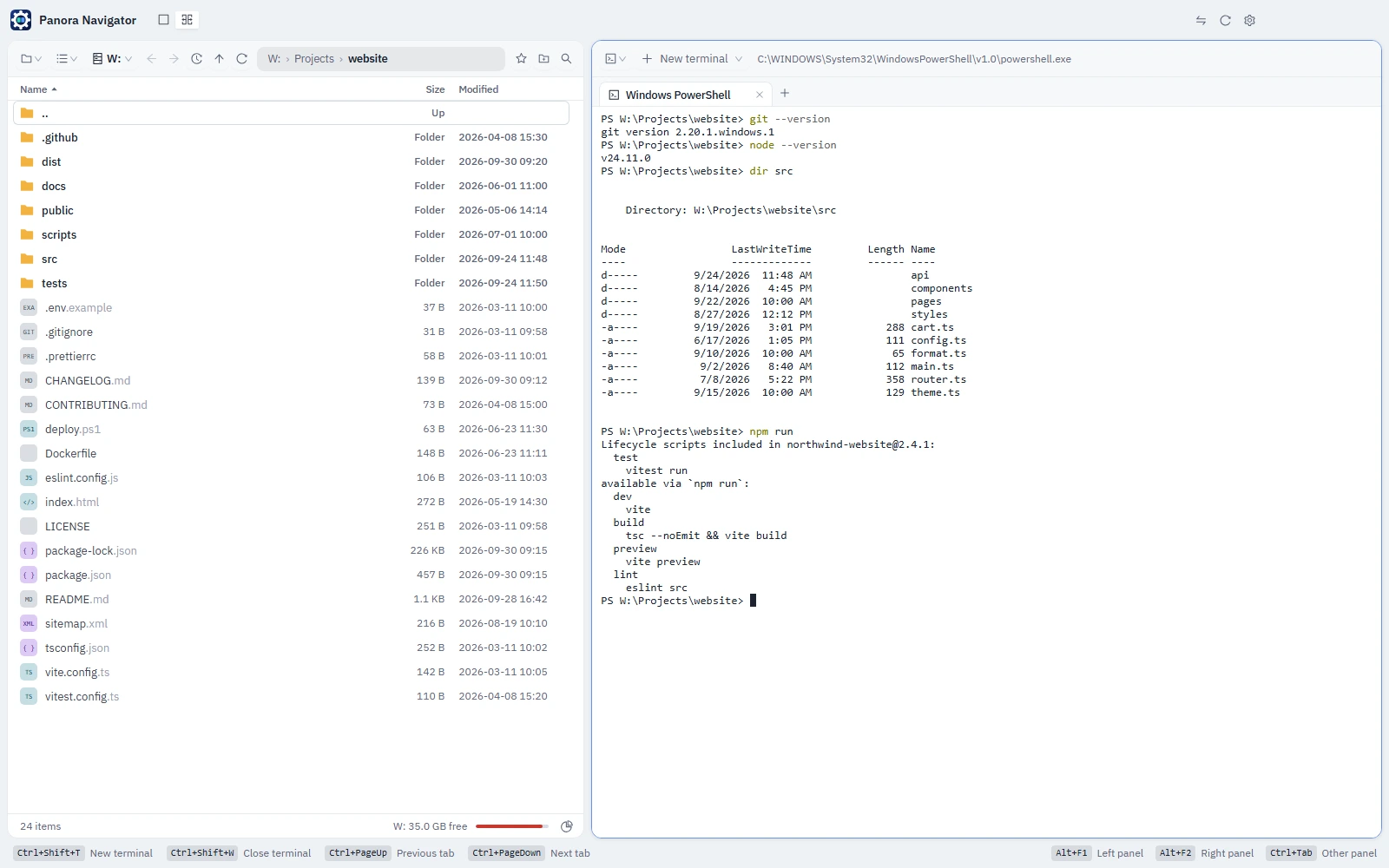
- The shells on your computer
- Command Prompt and Windows PowerShell, plus PowerShell 7, Git Bash and WSL when they are installed.
- Starts where you are
- A new terminal opens in the folder the other panel shows.
- Keeps running
- Terminals go on working while the panel shows something else, and end with the app.
- Copy and paste as expected
- Ctrl+C copies a selection and stops a program when nothing is selected; Ctrl+V pastes; a right click does either.
FTP and SFTP
Register a server once. From then on it is a file list with the same keys as a folder on your disk.
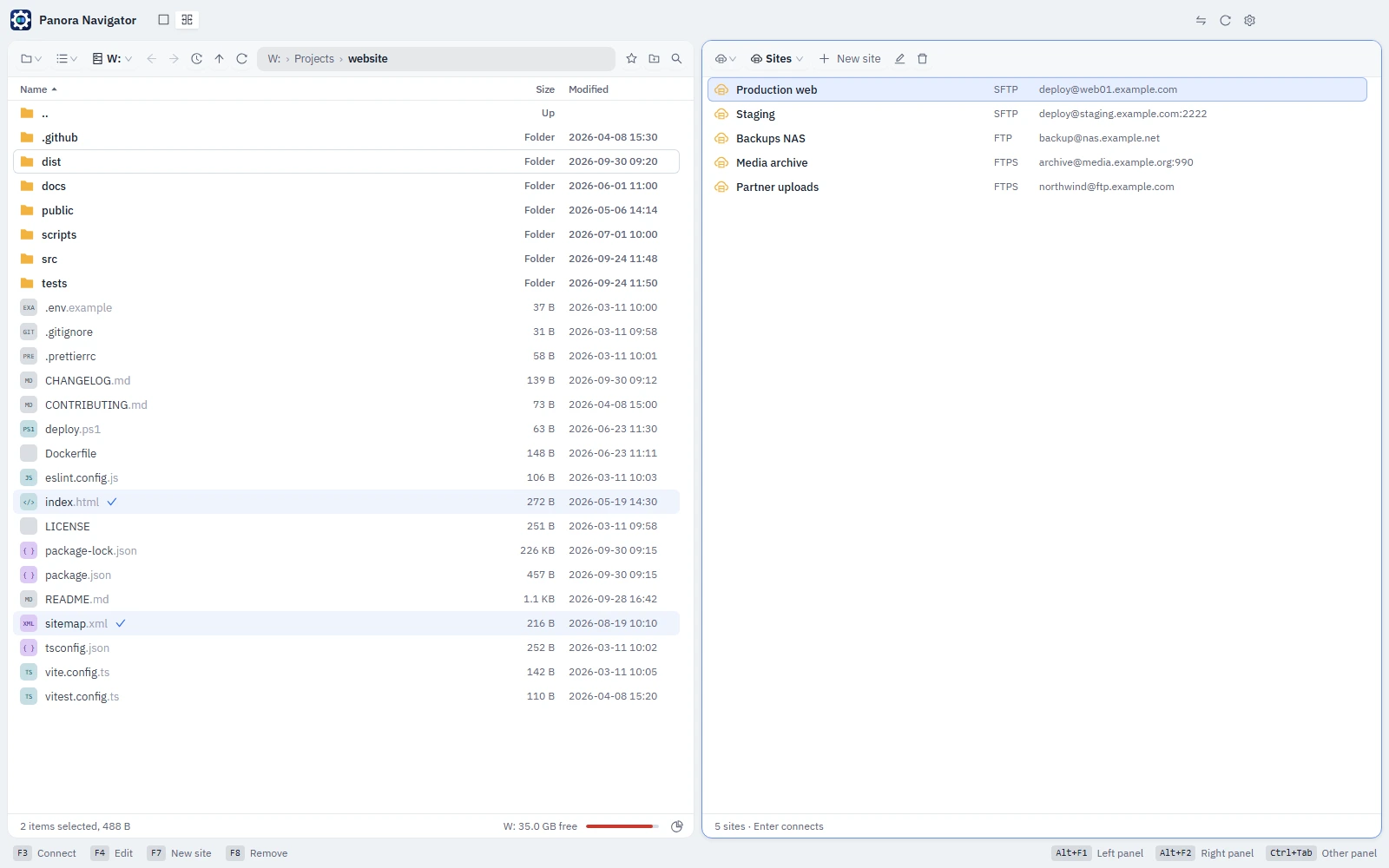
- SFTP, FTP over TLS, FTP
- Sign in with a password or, for SFTP, a private key file.
- Edit in place
- F3 and F4 open a file from the server, and saving writes it back.
- Copy anywhere
- F5 and F6 copy and move between a server and the disk, or from one server to another.
- Passwords stay protected
- They are kept encrypted for your Windows account and never handed to the window. A server whose key has changed is refused until you say so.
Secure storage
An encrypted file that is worked with as a drive. Make one, give it a password, and copy into it what must stay private.
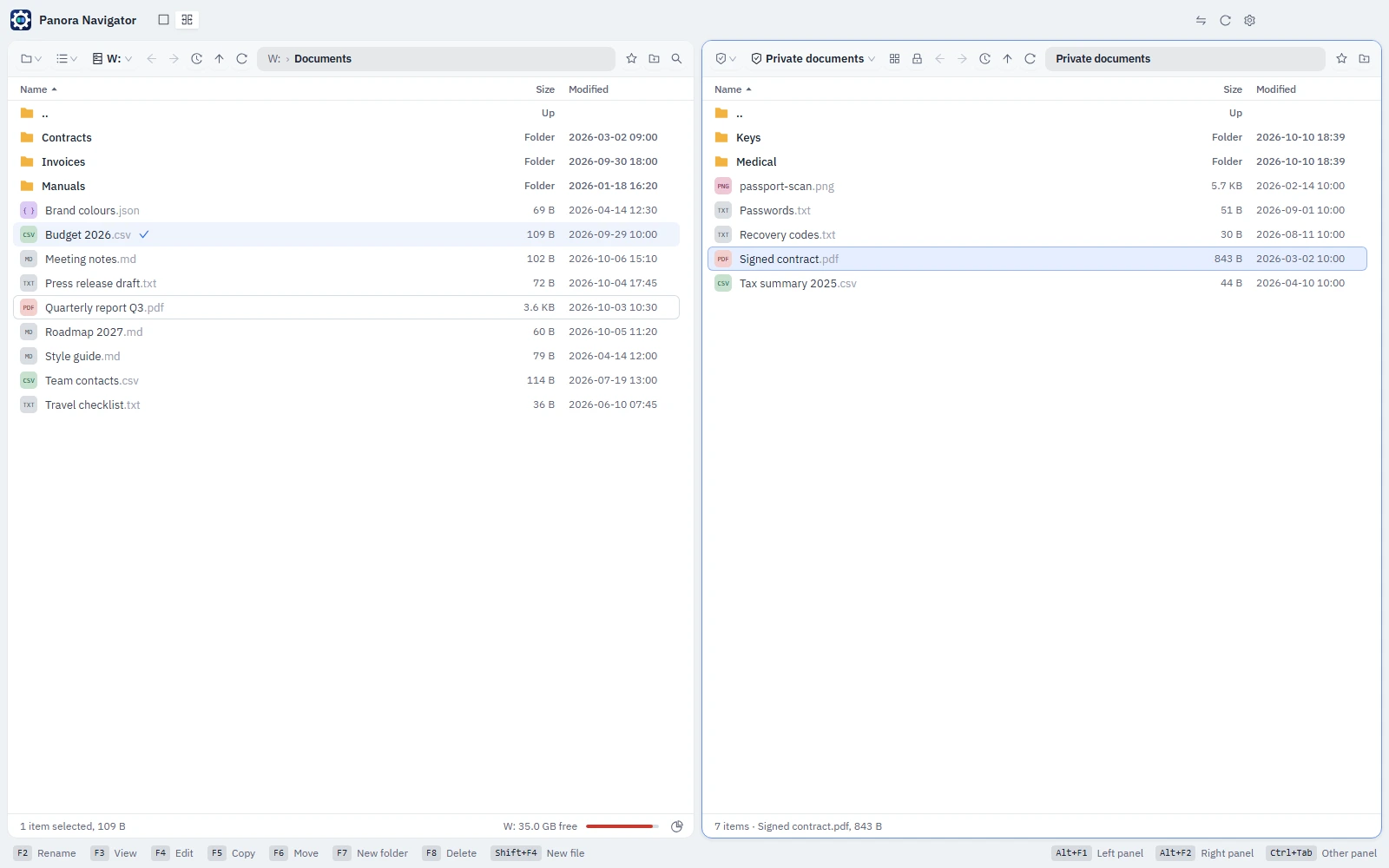
- Strong, standard encryption
- The file is sealed with AES-256-GCM under a random key that your password unwraps with scrypt. A changed byte is noticed.
- Nothing shows from outside
- Names, sizes and contents are all inside the file.
- Works like a folder
- F5 and F6 copy and move between a storage and the disk, inside it, or to another storage. F3 and F4 show and edit a file without writing an open copy to the disk.
- Locks itself
- Lock a storage from its toolbar; closing the app locks them all. A forgotten password cannot be recovered.
Editors and viewers
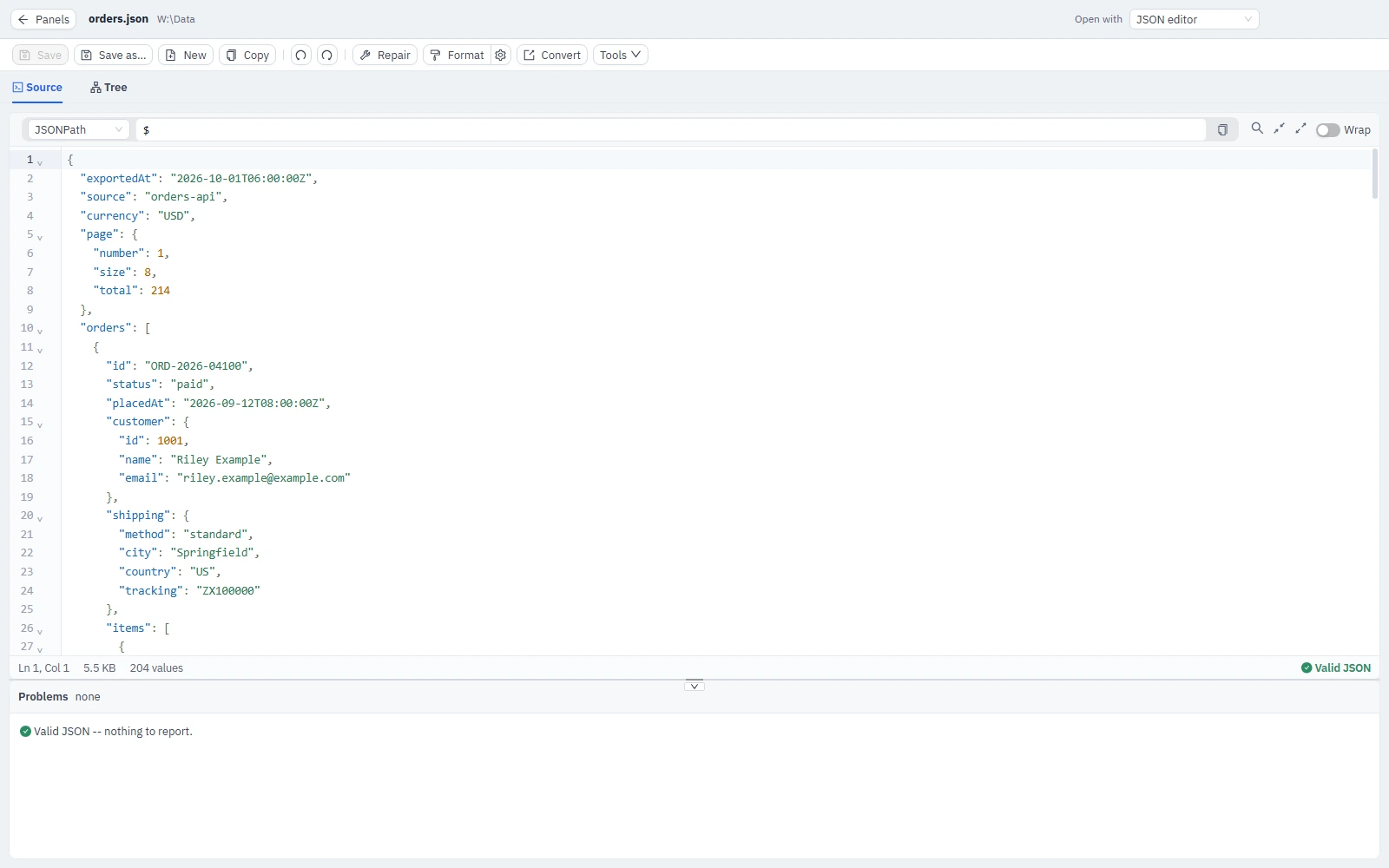
F4 opens a file over the whole window; Esc or F10 goes back, asking first when there is unsaved work. The editor is chosen by the extension, and "Open with" changes it.
| Files | Editor |
|---|---|
| Anything not listed below | Text editor with syntax highlighting for the language the name suggests |
| .md .markdown .docx | Markdown editor with preview |
| .json .jsonl .ndjson .geojson | JSON editor |
| .xml .xsd .xsl .xslt .wsdl | XML editor |
| .csv .tsv .xlsx | CSV and spreadsheet editor |
| PDF editor | |
| .png .jpg .jpeg .webp .bmp .gif .ora | Image editor, with image metadata and steganography under "Open with" |
| .tif .tiff .heic .heif .avif .jxl | Image metadata |
| .log .gz | Log viewer |
| .hl7 .er7 | HL7 editor |
| .x12, .edi starting with ISA | X12 editor |
| .edifact .edf, .edi starting with UNA or UNB | EDIFACT editor |
| .dcm .dicom | DICOM viewer |
| .nhax .enhax | NHAX viewer |
Themes
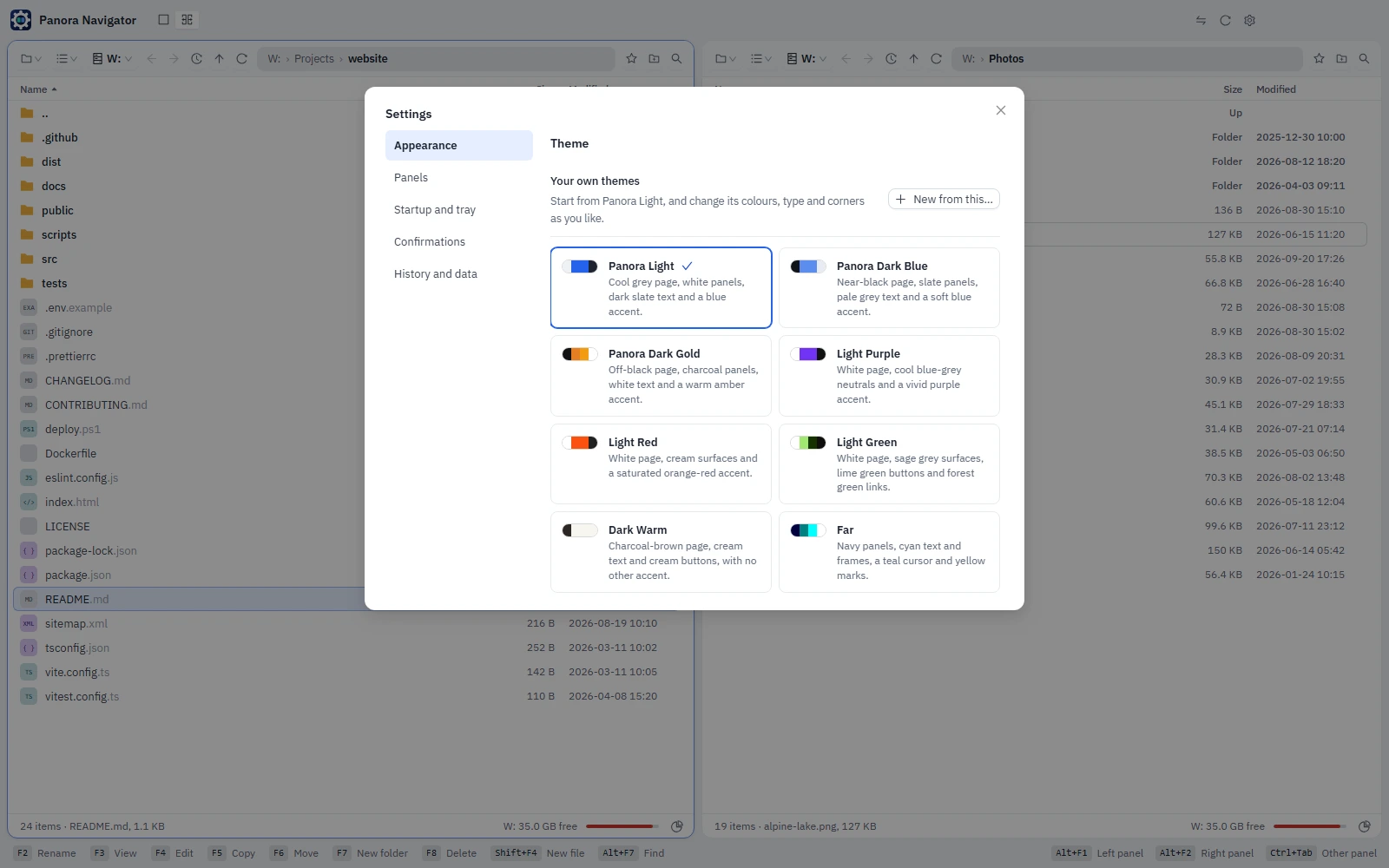
Change the whole look of the app in the Settings.
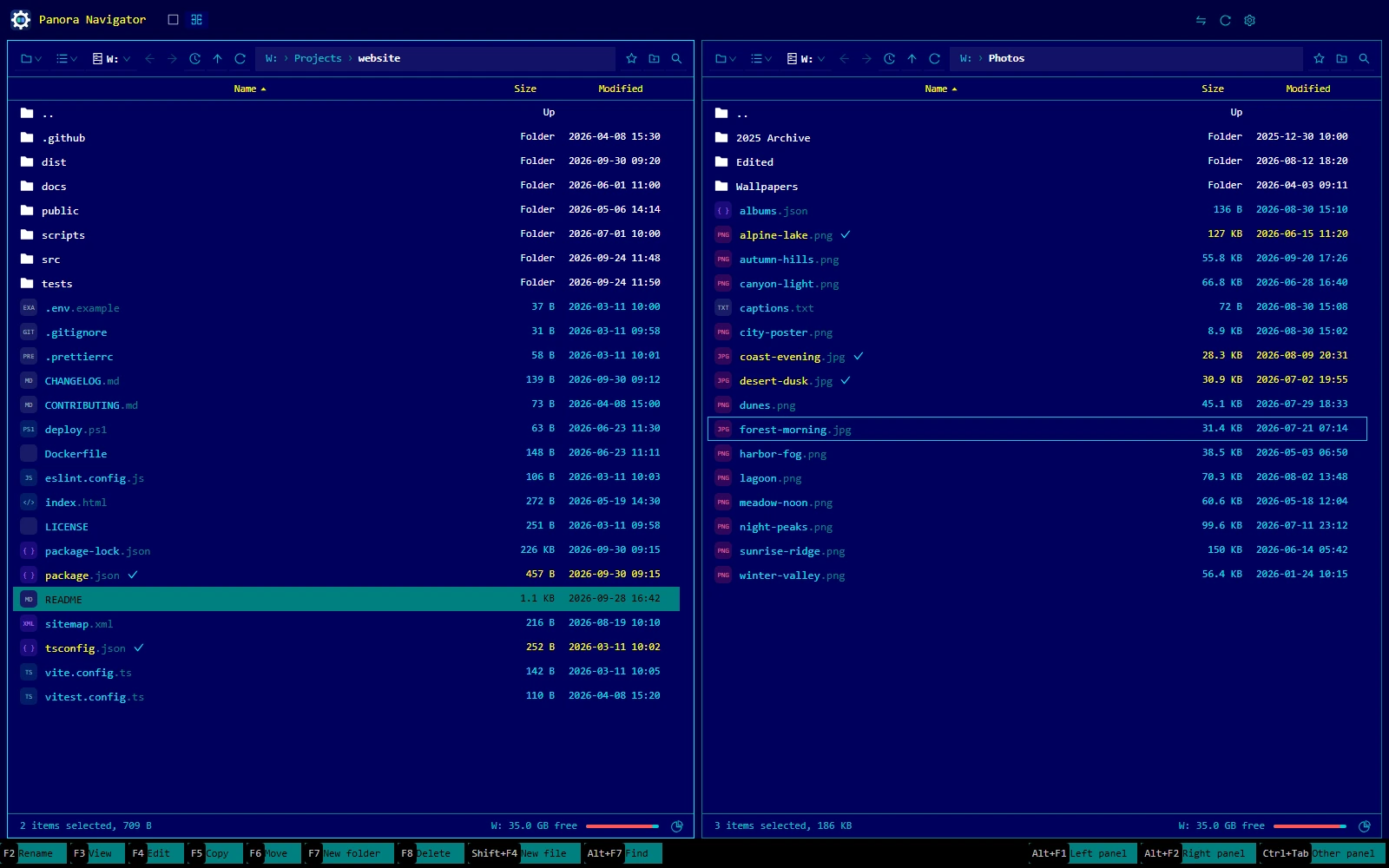
- Built in
- Panora Light, Panora Dark Blue, Panora Dark Gold and Far, plus Light Purple, Light Red, Light Green and Dark Warm.
- Your own
- Start from any theme and change its colours, fonts and radii in the theme editor, as a form or as text, with a preview drawn as you go.
- One document
- A theme is kept as a single DESIGN.md document, and one made elsewhere becomes a theme by importing it.
Startup and tray
Two switches in the Settings, both off at first.
- Icon in the notification area
- Closing the window hides it and the app goes on running; a click on the icon brings it back.
- Start with the system
- Windows starts the app when you sign in. With the icon on, it starts out of sight and waits beside the clock.
- Installer or portable
- Install into a folder you choose, or keep a single .exe wherever you like.